Face Recognition (Preview)
How it works
The Face Recognition rule generates an event when a person whose face is enrolled on a watchlist is detected in the scene. Watchlists are collections of people (persons of interest), and each person can have one or more face images attached to them. When Face Recognition is enabled and a face in view matches someone on the selected watchlist, the rule raises an event so an operator can respond. Typical uses include watchlist alerting at controlled entry points, monitoring sensitive zones, and face-linked forensic search.
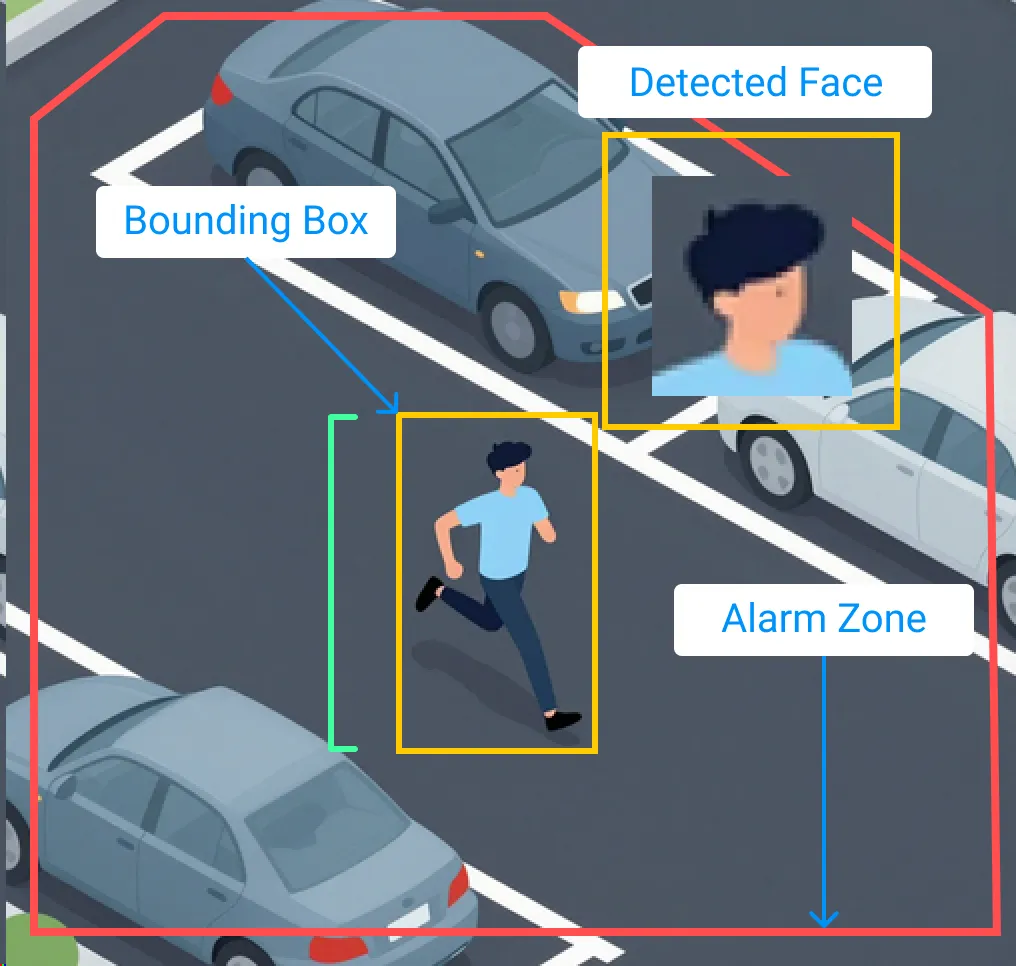
How it detects
Face Recognition runs as a pipeline split between the Edge and the Core:
- The Edge first detects a person in the scene.
- The Edge sends a cropped image of the upper portion of that person to the Core.
- The Core compares that representation against the faces enrolled on the watchlist. If it matches a person closely enough, the rule generates an event identifying the matched person.
Because recognition depends on first detecting a person and then getting a clear enough face, image quality, angle, and lighting all affect accuracy.
Face Recognition can be used in more than one way:
- Real-time watchlist alerting — raise an event the moment a watchlisted person is seen.
- Investigation / Find Faces — search recorded video for a person, including by an uploaded image.
How to set up
- Create a watchlist and add the people you want to monitor, attaching one or more clear face images to each person.

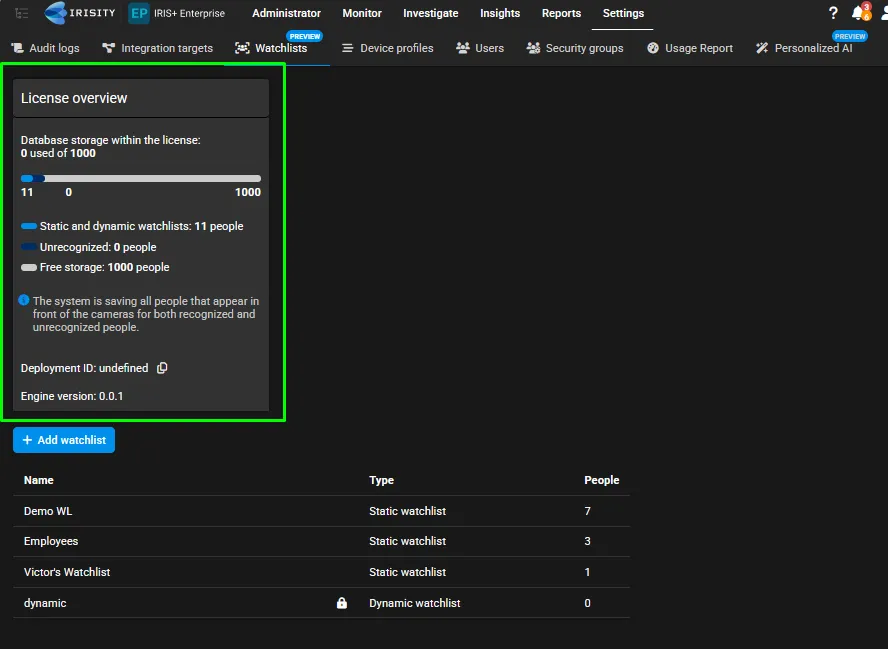
Here in the watchlist setting, the screen provides an overview of facial recognition license usage, followed by the options to create and manage watchlists.
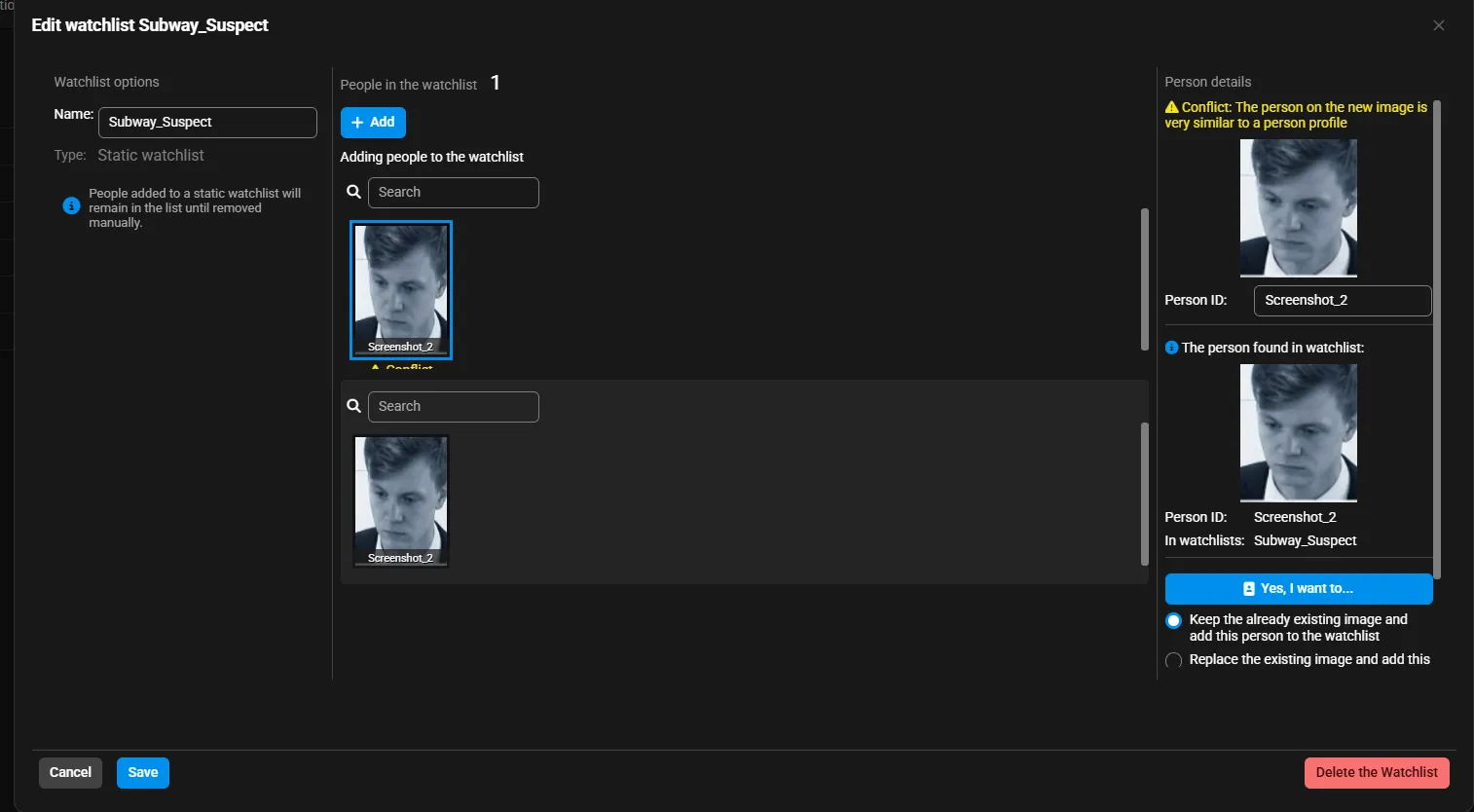
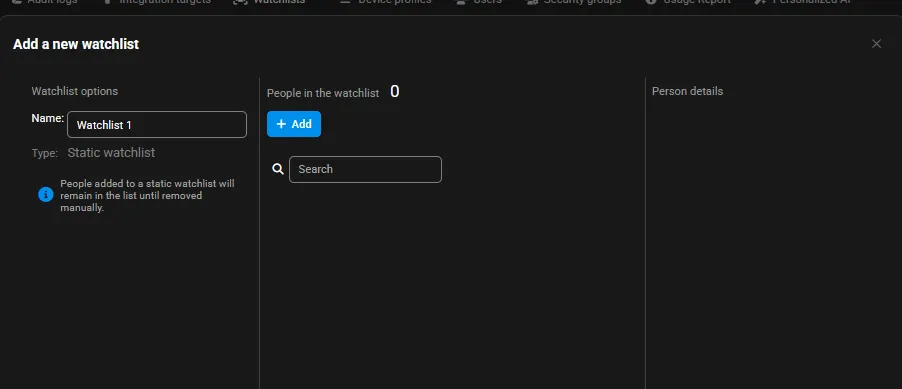
- Click +Add watchlist and add the faces of relevant people, and give the watchlist a name. The watchlist today only allows one image per person of interest, so be sure that you don't use duplicate images. If you use duplicate images, a warning may show up on the screen like this:
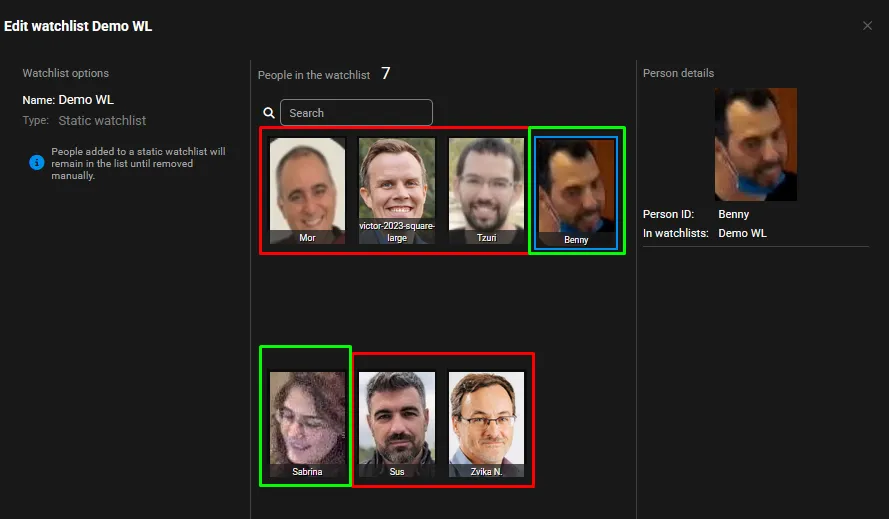
Note: When uploading a face to a watchlist, be sure to use an image of the person that is best captured by a CCTV camera. Here in the screenshot examples, the ones boxed in red are not the best examples, as the you are indicating to the system that the person's face is captured at head and face level. This can cause little to no matches in the detection, as CCTV cameras are typically not installed at eye level. In the examples highlighted in green, these sorts of examples are most suitable, as they provide the closest image to how a person would look like on a CCTV capture.
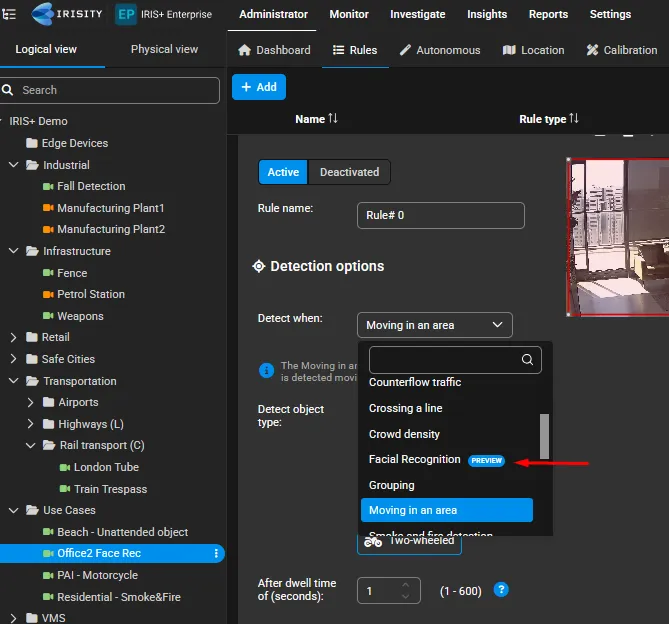
- Open the rule tab on a camera, create a new rule, and select Facial Recognition as the detection type.
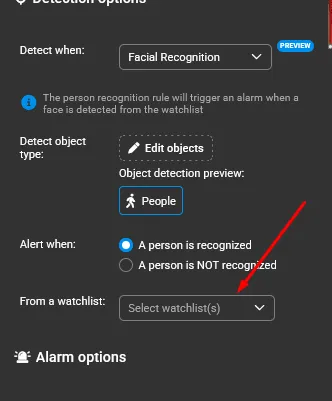
- Select the watchlist the rule should match against.
- Save and activate.
What to expect
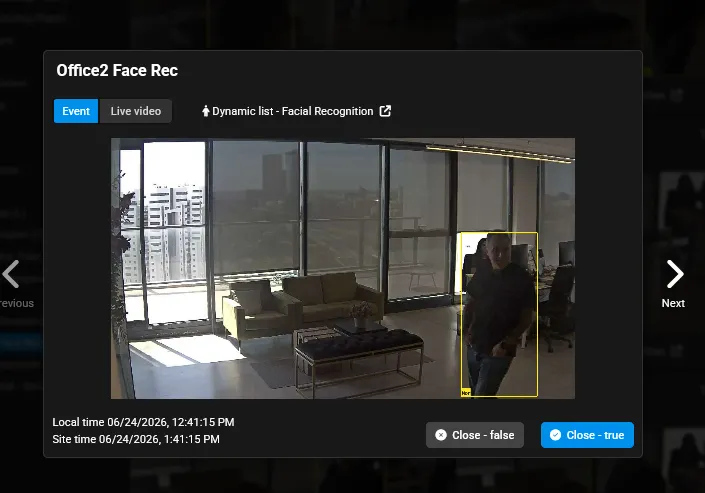
- An event is generated when a face in view matches a person on the selected watchlist, and includes the matched person's identity.
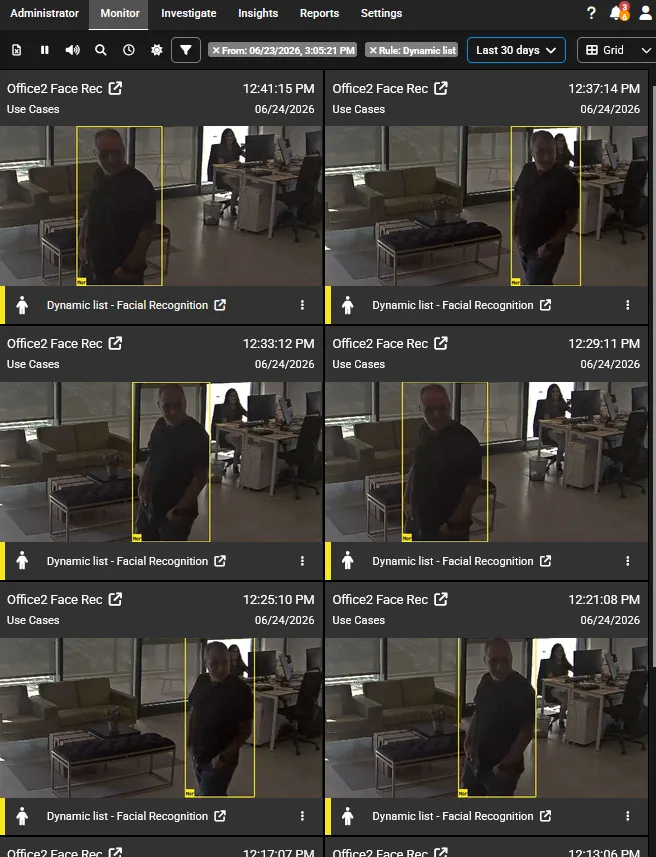
- In this result of events, you may still classify it as a true or false event when opening the event itself.
Best Practices
- Recognition works best with clear, well-lit, reasonably angled-camera facing faces. straight angles, motion blur, or low resolution reduce match accuracy. Avoid uploading:
- Profile pictures from social media
- Images with heavily obscured faces (sunglasses, wigs, face paint)
- Images that no longer matches with the person's face (ie: Uploading an image of the person from ten years ago)
- Images with heavy facial filters
- Face Recognition stores additional face-image data to support investigation and searching, which increases storage requirements — plan capacity accordingly.
- A rule matches against one watchlist at a time.