Moving in an Area
How it works
The moving in an area rule detects moving objects in scene.
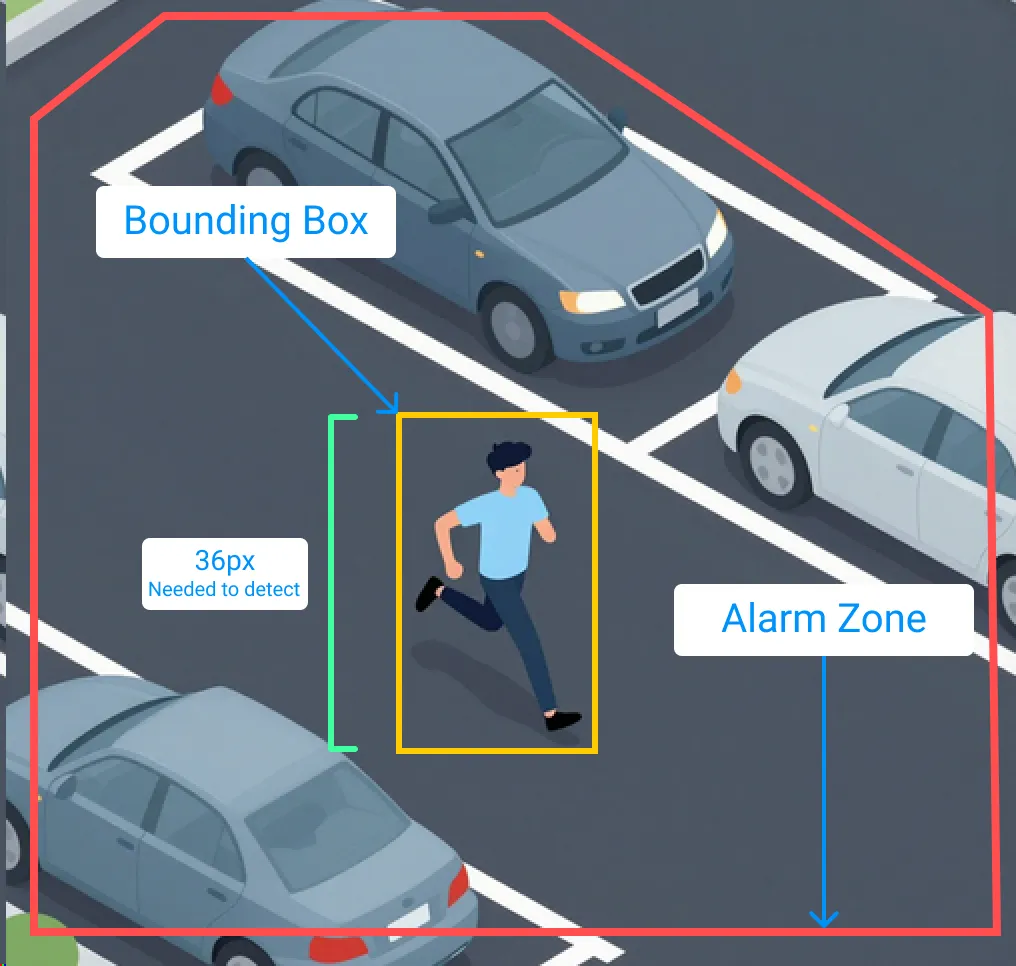
When an alarm zone is drawn on top of the camera feed, it tells the rule to search for moving in an area activities within the zone. When an object, like in the example, a person, runs through the alarm zone, a bounding box is generated on top of the object, indicating that this object, is moving in an area, within the alarm zone.
How it detects
For an object to accurately be detected in a scene, there is a minimum pixel requirement from the video stream. The minimum is about 36px on target.
Examples on how this might look in a stream:
- A person standing about 1.8m tall will look about 20px/m
- A vehicle sitting at 5.8cm long will look about 7.5px/m
Anything less than 36px will most likely not be detected in a scene.
How to setup
Moving in an area as a rule is optimally configured with these following settings in the camera setting:
- 720 -1080p
- 8-12fps
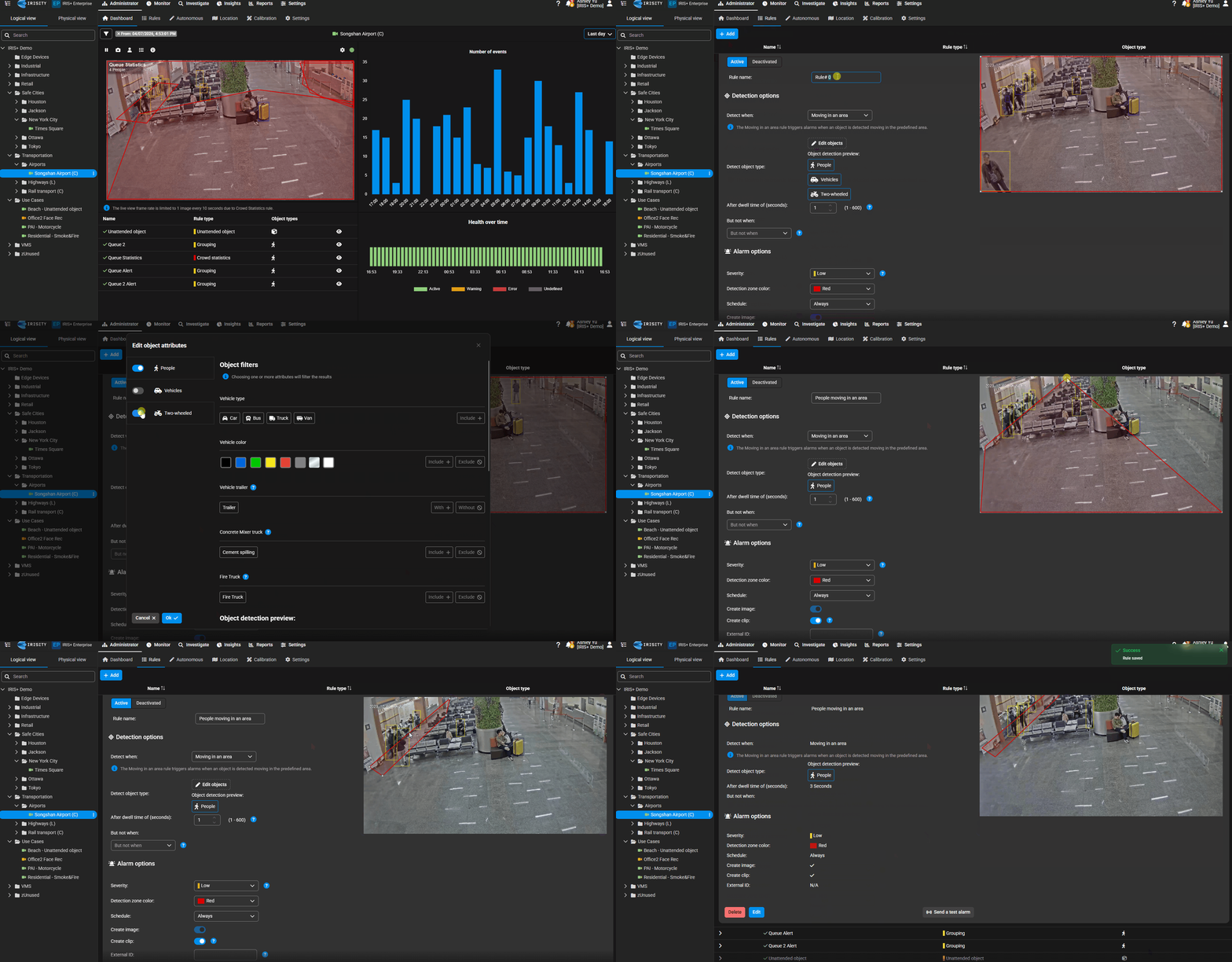
- Select a camera from the camera tree
- Navigate to the rules tab
- Click +Add
- Set the object type to generate an alert on
- Set the dwell time, the duration of time that should pass between events
- Click save
What to expect
When an event is triggered by the moving in an area rule, it will populate in the monitor tab, showing you the activity that has occurred.
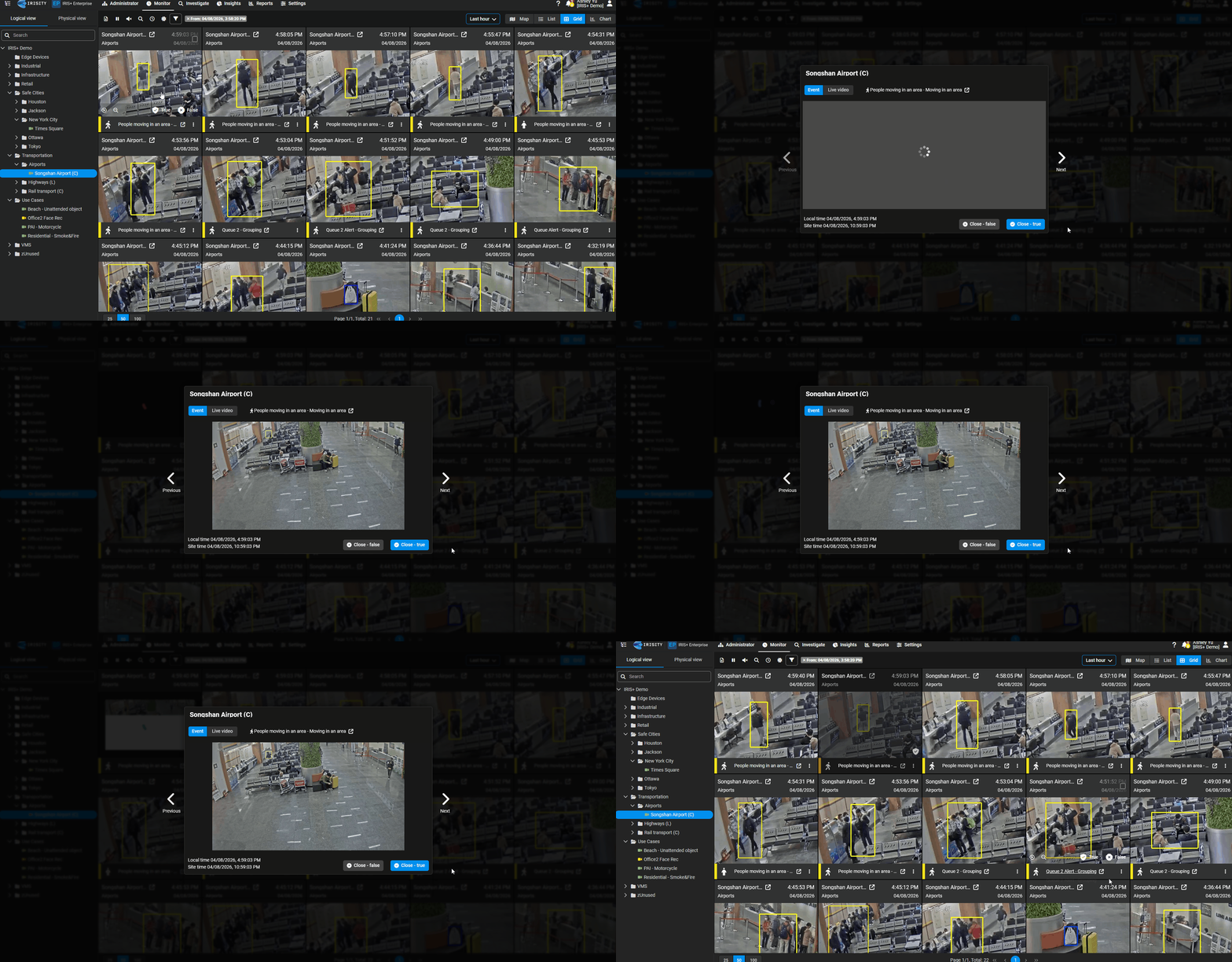
To ensure that the system understands overtime what is considered moving in an area, you should click on the event, review the scene that was recorded, and classify if the event is true or false. With more classifications overtime, the system will result in more accurate results.
Tips & Tricks
To ensure that the object is is properly detected:
- Set the correct object height in the calibration page
- If you are trying to detect a human in a scene, avoid drawing the alarm zone in high traffic or crowded areas (ie: Freeways, city crossings)
- Avoid drawing alarm zones in areas that would potentially block movement in an area