Manage your IRIS+ system
Use this guide after installing IRIS+ AI Guarding 2026 R2.1. It covers on-premise Core infrastructure, including air-gapped installations that operate fully offline.
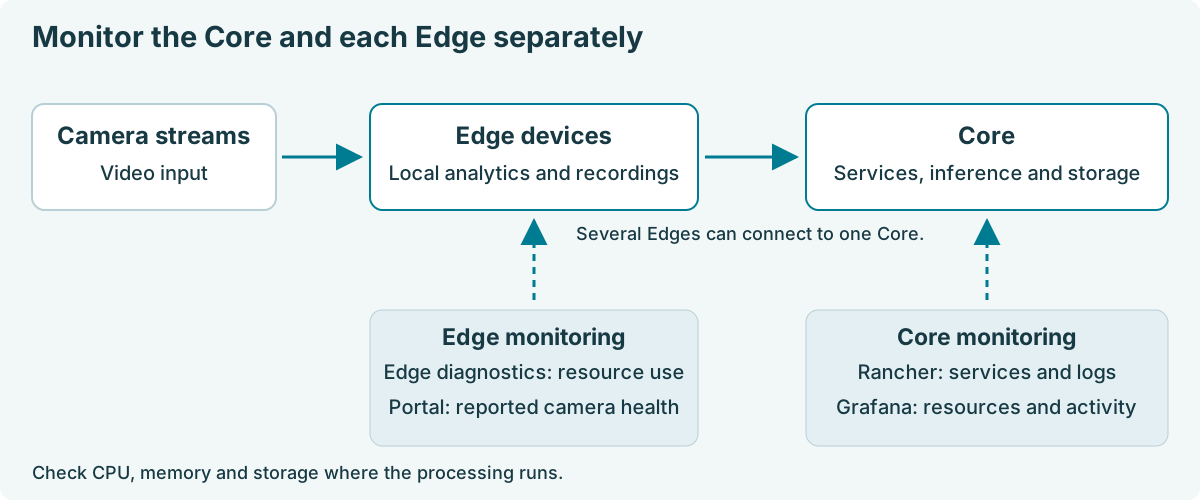
The Core hosts central services and stores system data. Edges process camera streams. Where enabled, Core-based models also use Core resources.
Choose a tool
Tool | What you find | Use it to |
|---|---|---|
Rancher | Core servers, containers, logs, storage claims and scheduled jobs. | Locate a failed service or inspect an error. |
Grafana | Resource trends, GPU readings and processing dashboards. | Compare load and activity during a selected period. |
IRIS+ Portal | Camera and Edge health, events and media. | Check connections and confirm delivered results. |
These tools complement each other. Resource readings and running services alone do not confirm that expected events and media arrived.
Other tools support specific investigations:
Tool | Purpose |
|---|---|
Prometheus | Collection status for endpoints that provide metrics. |
Kibana | Indexed application and device information in Elasticsearch. Use Rancher for container logs. |
Kafka UI | Message streams and the services that read them. |
pgAdmin | Database inspection for authorized administrators. |
API reference | Supported integration operations at the API host's /docs/ path. Your Core serves it, so it also works offline. |
Open tools
Obtain the installation hostnames, tool-access routes and assigned accounts from your installation administrator. The Portal and infrastructure tools can require different accounts.
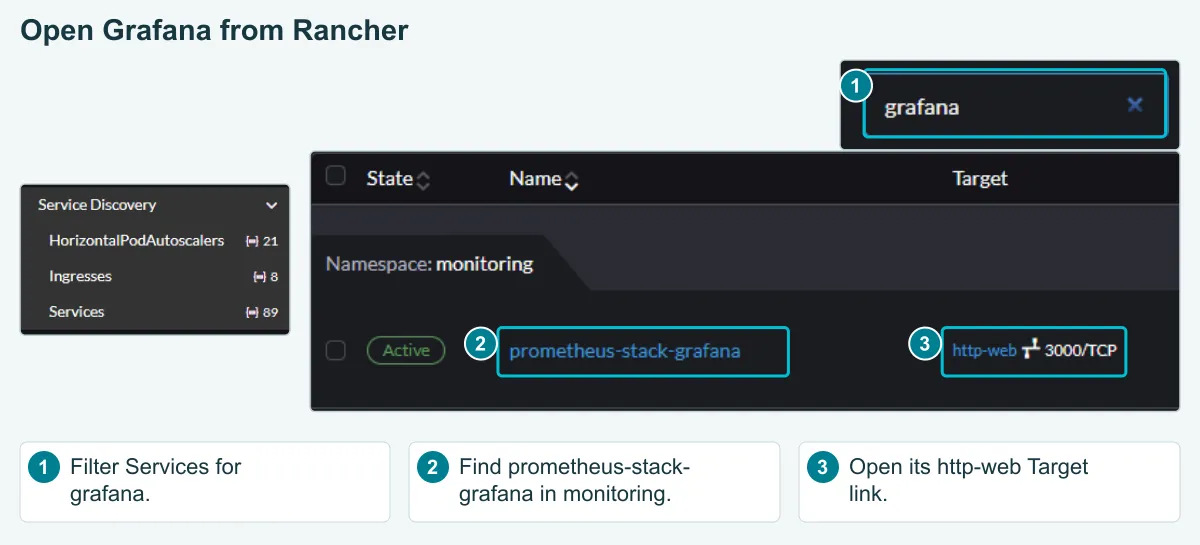
To open Grafana through Rancher:
Select a screenshot to enlarge it.
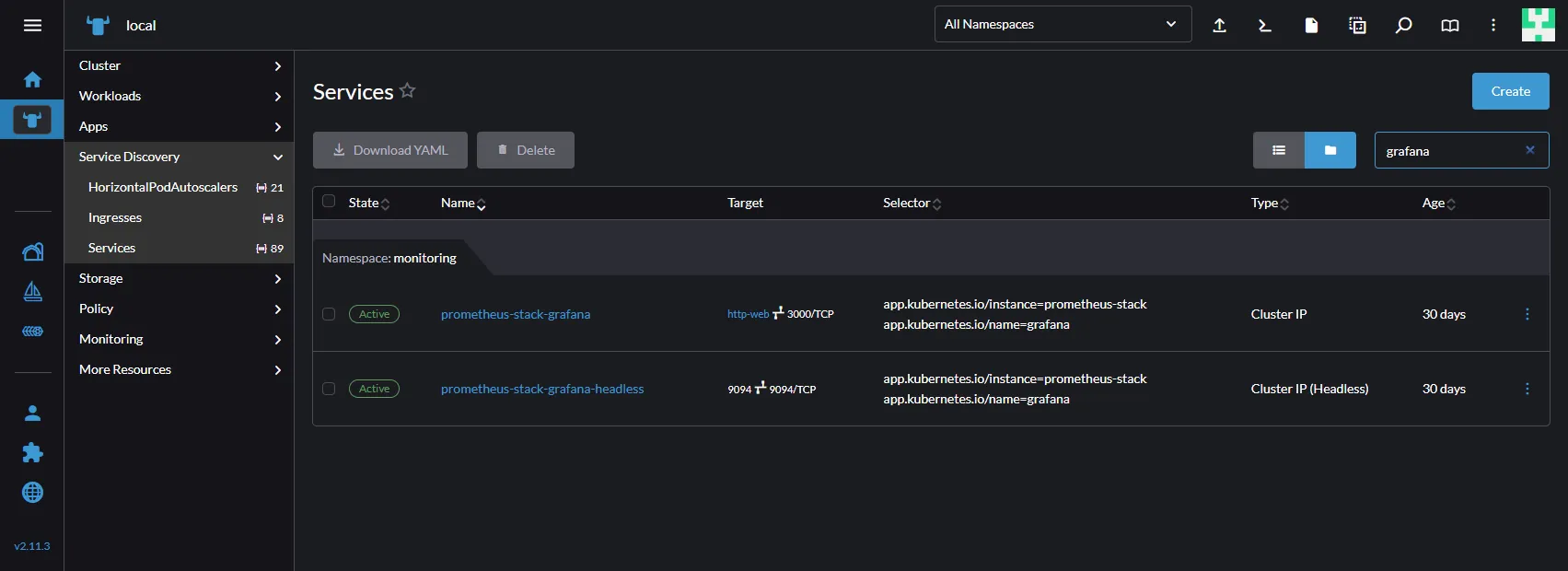
- Open https://{console-host}/dashboard/home.
- Sign in with your infrastructure account.
- Select the Core cluster.
- Open Service Discovery → Services.
- Select the monitoring namespace.
- Open prometheus-stack-grafana.
- Select its Target link.
- Sign in to Grafana if prompted.
- Open Dashboards.
If the session expires or Page not found appears, follow Reopen Grafana.
Manuals and further guidance
For an offline site, download the manuals from these pages beforehand. Use your browser's print option to save guide pages as PDF. For best results, switch the page to light mode before printing.
Start with Core monitoring, Core troubleshooting, Core maintenance or Edge monitoring.