Personalized AI (PAI)
The Personalized AI module in IRIS+ offers customers a customizable object attribute creator. This feature allows customers to create objects that can be detectable at monitored sites, generating alarms and events on objects completely curated and tailored to each customer's need.
Follow the guide below to learn how to create your first personalized attribute.
Before you begin!
To ensure that this feature will work properly, please make sure you have the following:
- Have at least one active camera connected to an active device in your account.
Where is it located?
The module can be found under Settings and placed at the end of all the tabs

Create your first customized attribute
Adding attribute descriptors
First, click on the +Add button

Then, you should see the attribute edit screen
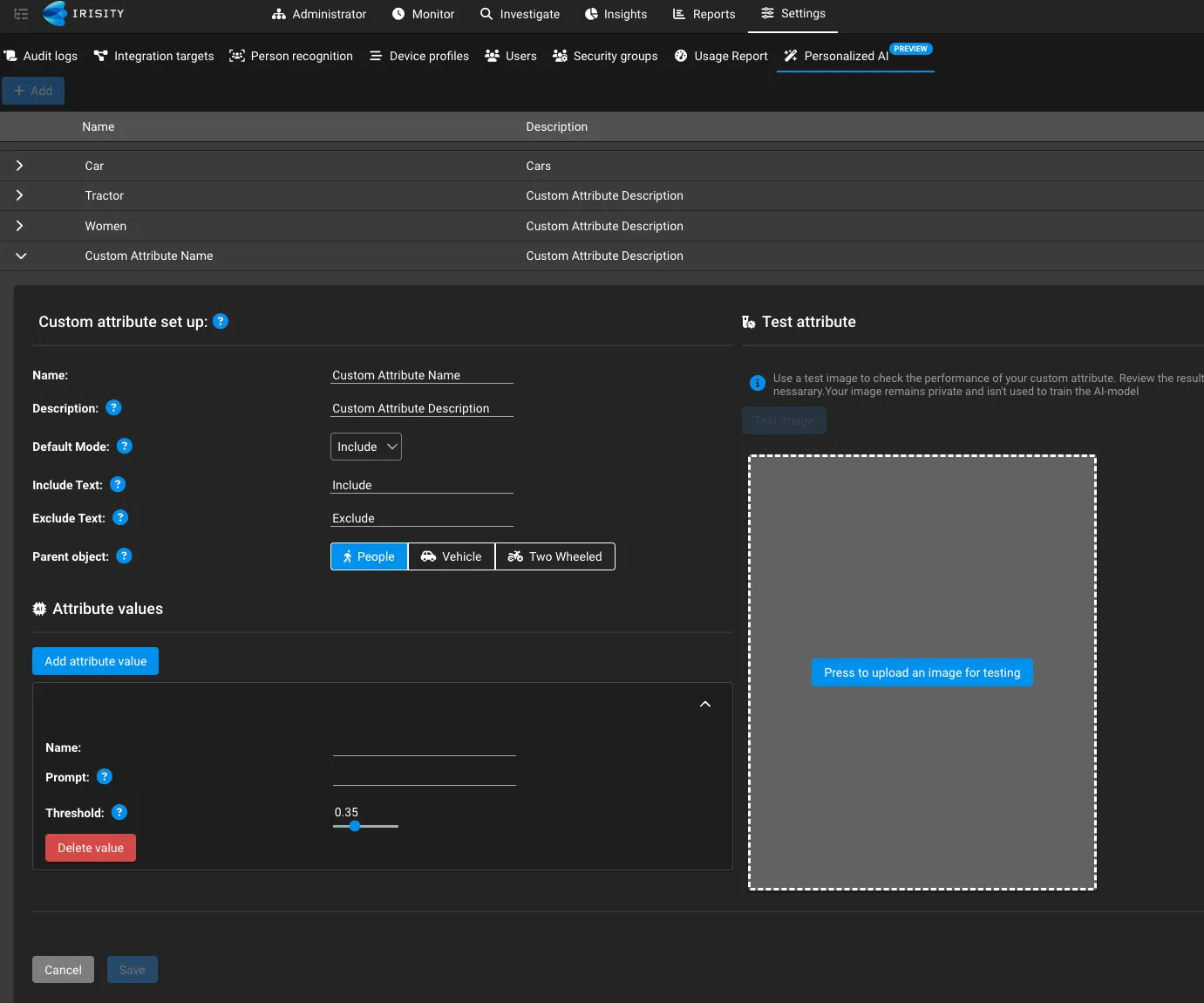
Here, you can configure your first attribute.
Below is a table that explains what each field does on this page. As an example, we will use a clean room garment to create an attribute to use in a particle-sensitive environment.
Field | What it does | Example |
|---|---|---|
Name | Name of your attribute | Clean room garment |
Description | Describe your attribute | A person wearing clean room garment |
Default Mode | Specifies if you want to trigger events if the attributes are detected in a scene. This can be changed later in the rule. | Exclude - The rule will trigger when a person is detected without a clean room garment |
Include text | Specifies the text that will be shown in the rule UI for the Include option. Examples can be: "Include", "With", "Wearing", etc. | Wearing |
Exclude text | Specifies the text that will be shown in the rule UI for the Exclude option. Examples can be: "Exclude", "Without", "Not wearing", etc.an event to get triggered | Not wearing |
Parent object | Select which primary object the attribute is based on. IRIS+ today offers three primary object: People, Vehicle, or Two-wheeled. | People |
Name (value) | Specifies what identifiers would make up the description of the attribute. | White suit, gloves, goggles, mask, white shoes |
Prompt | Provide a prompt that will instruct the AI what to detect. You can provide a comma-separated list of different prompts that describe the object. Providing multiple prompts can increase the detection accuracy in some cases | Person wearing clean room garment |
Threshold | Specifies a minimum sensitivity level for the attribute to generate an event on | 0.5 |
Setting up values for an attribute
An attribute value is a single component of an attribute. These values make up what describes the entire attribute itself.
The more values you add to an attribute, the more defined the object becomes.
Below are examples of what sorts of values you can set for each attribute
Example attribute | Example values and prompts |
|---|---|
Clean room suit | Uniform
Accessories
Shoes
|
Garbage truck | Vehicle
Uniform
Alarm
|
Medical supplies box | Medical box
|
Delivery package | Amazon box
|
Graffiti | Painted wall
Spray can
|
Assault rifle | Receiver
Cartridge
Barrel
|
Burglary | Storefront
Suspect
|
These names of the attributes will display as include/exclude options when editing the object in a rule
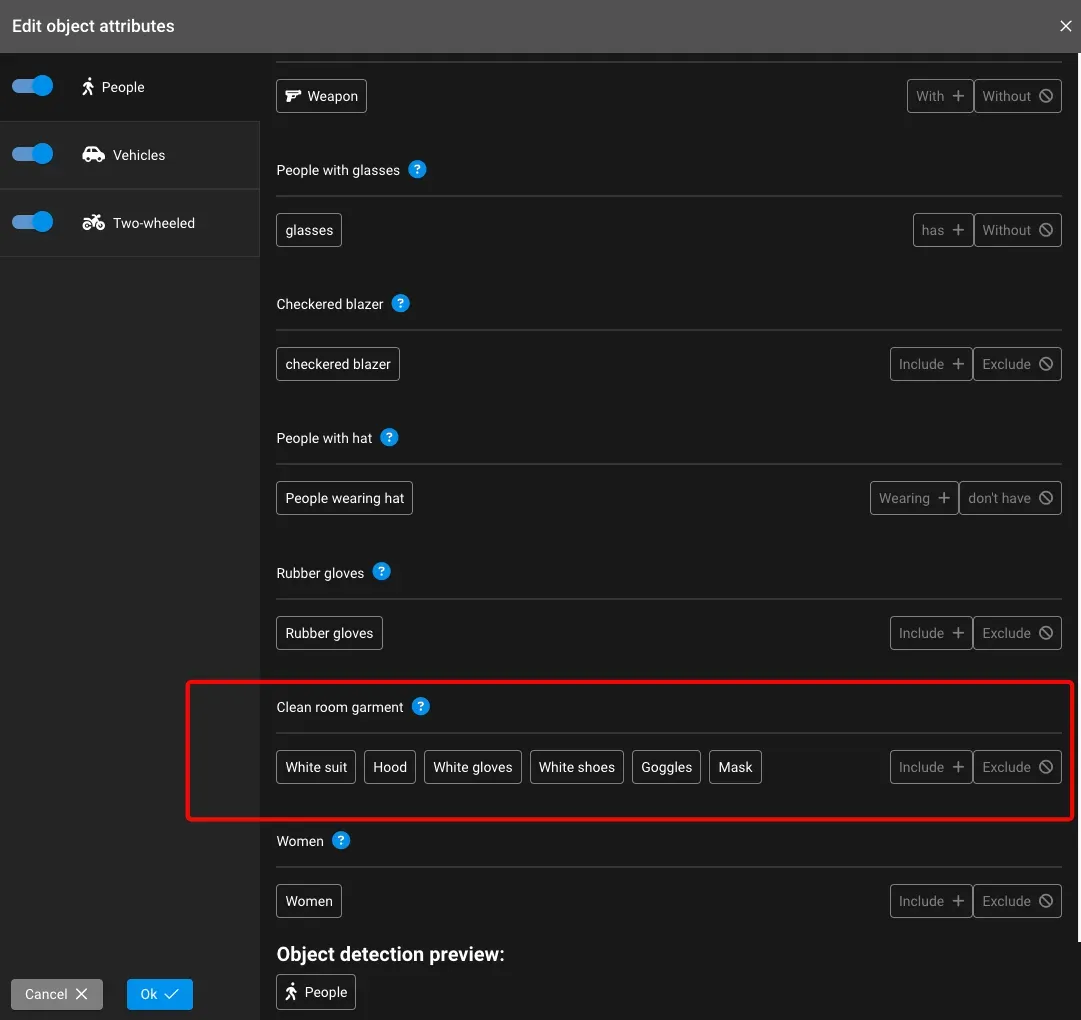
Testing the attribute with an image
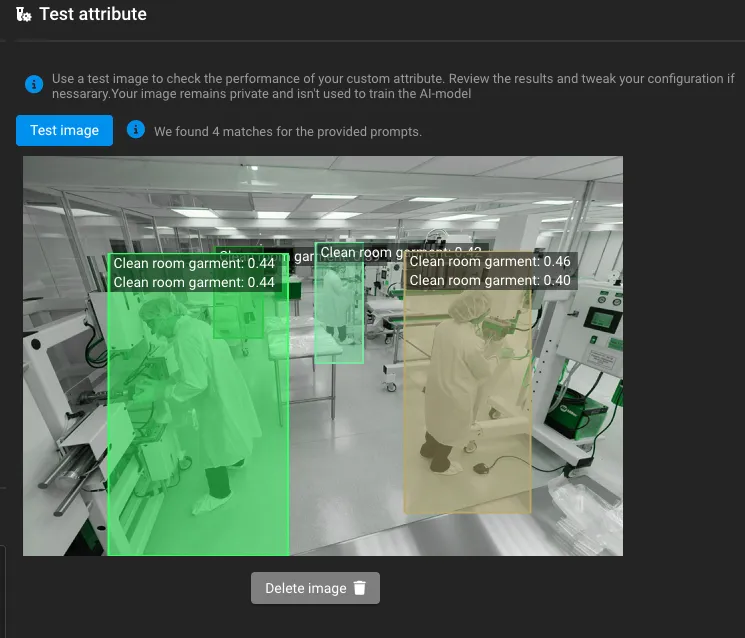
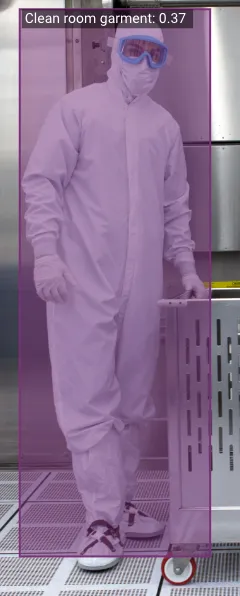
To ensure that the model detects properly, you can upload a test image to the attribute section to see if it distinguishes the object properly. With the same example above, we used an image that shows people working inside a clean room with clean room garments:
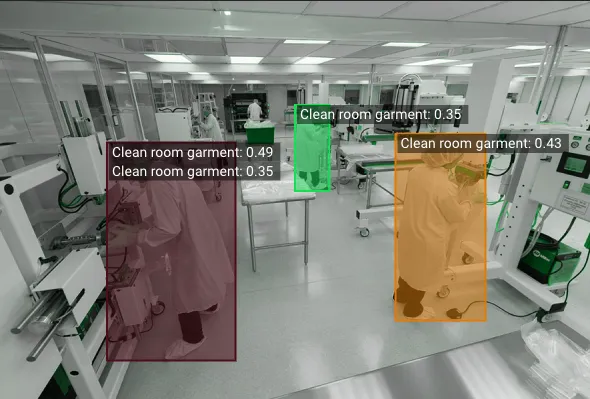
It is highly recommended that you test the attribute with multiple images to ensure that the attribute can be accurately detected with minimal false positives. Here's an example of the two images in comparison:
Configuring a rule with your custom attribute
When you save your custom attribute with Personalized AI, the attribute will be configurable in any real-time rule of your choice, so as long as the parent objects are:
- Person
- Vehicle
- Two-wheeled
To configure the attribute for events, go to a camera of your choice and begin creating a new or editing an existing rule:
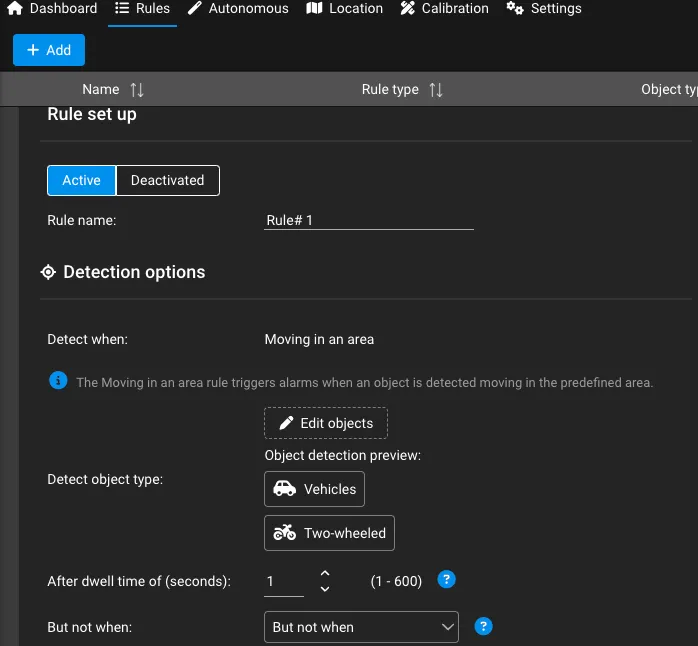
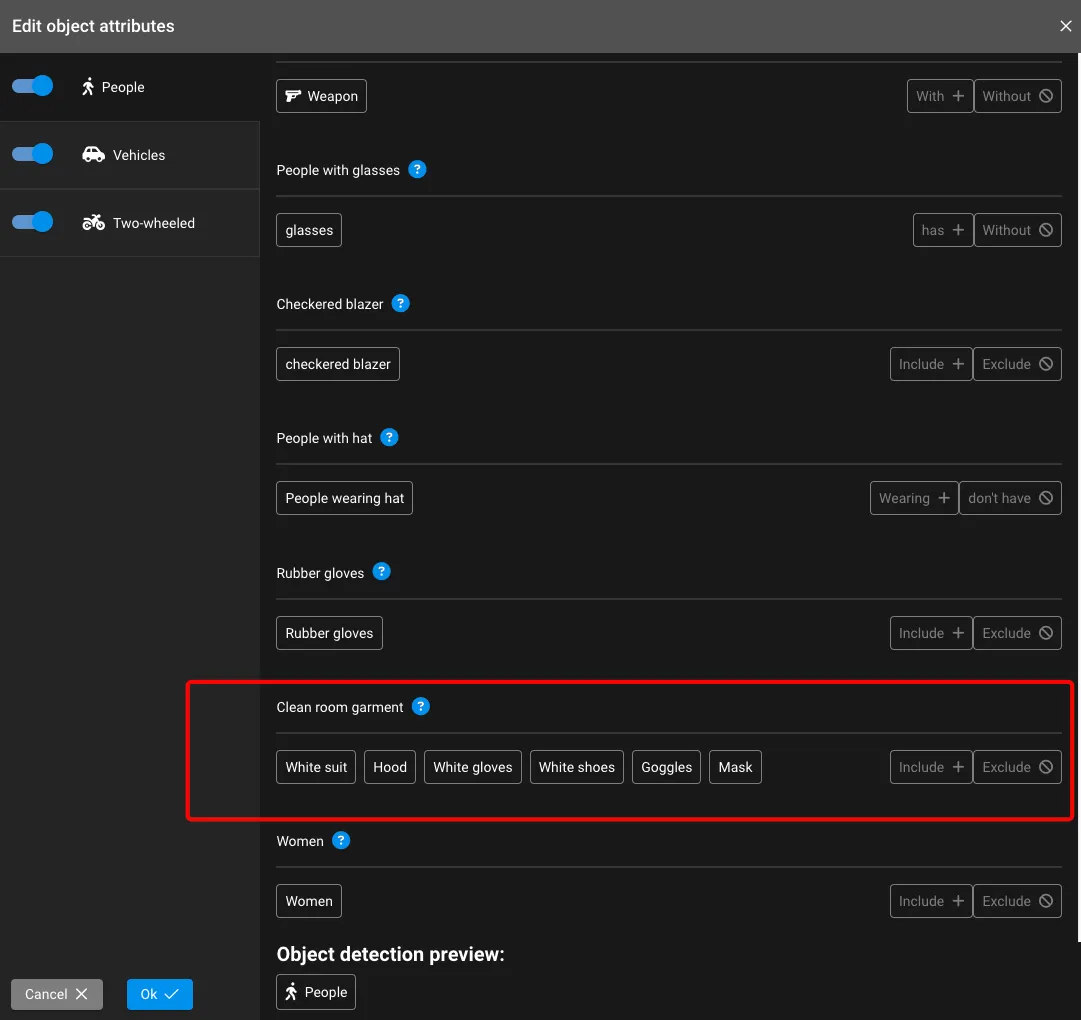
Click on Edit objects, which will bring you to the Edit object attributes pop-up, just as shown earlier:
Including and excluding attributes
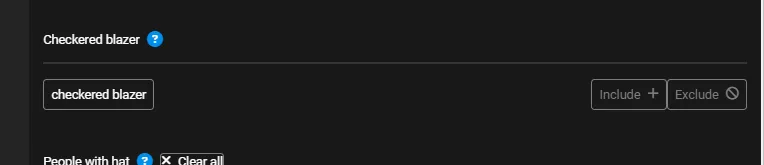
When setting up the attributes to trigger certain event behaviors, you must determine if you will use the Include or Exclude setting.
Include
When setting the attribute to Include, an event will trigger if the names of the attribute are included.
Example: If a person moving in an area is found to have aspects of broken glass and a window in a frame, an event with "burglary" will trigger and be shown on the monitor page.
Exclude
When setting the attribute to Exclude, an event will trigger if the names of the attribute are not included.
Example: If a person moving in an area does not have an orange vest on the job site, an event with "No vest" will trigger and be shown on the monitor page.
The Include and Exclude toggles can be configured on the Personalized AI page, which can be found when creating or editing an attribute
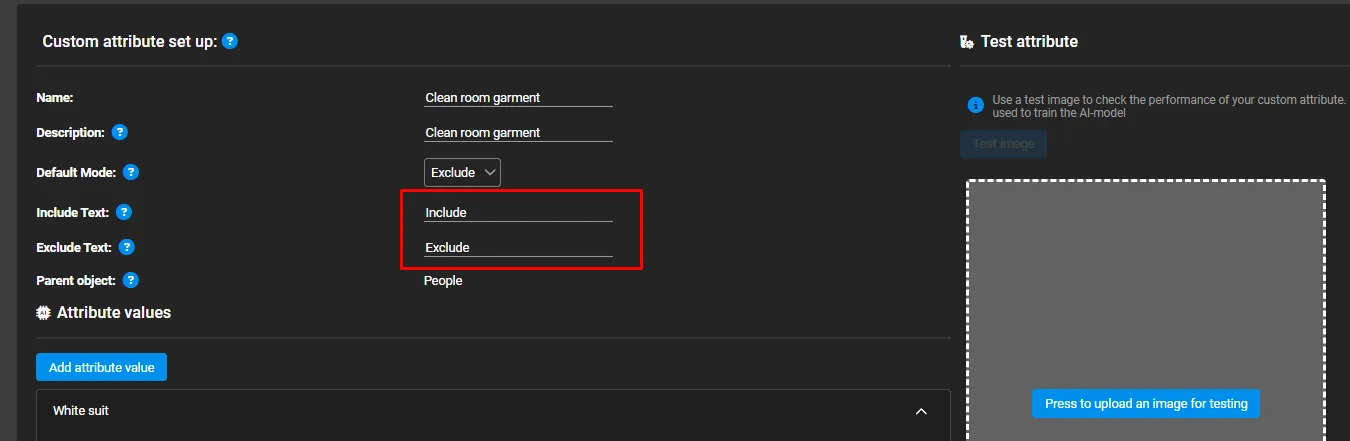
In this example, this can be updated as Include: "Wearing" and Exclude: "Not Wearing".

When the attribute is saved, the labels for Include and Exclude will update and be shown here in the edit object pop up:
