Axis Edge™ Installation Guide
1 min
A step-by-step guide to install the IRIS+™ Edge™ for AXIS application onto your camera and connect it to the IRIS+™ Portal.
Get the application installation file from Irisity customer support:
Irisity - Support [email protected]
- Camera interface
- Login to the camera
Ensure that DNS is configured in the network settings so that outside services can be reached.
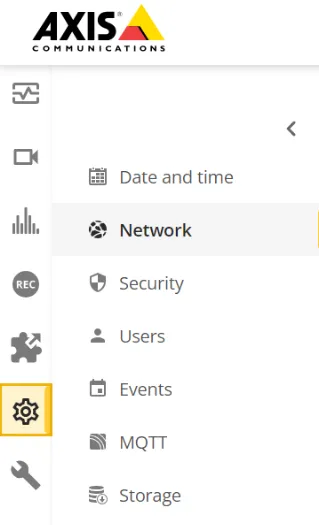
- Install app
Select apps
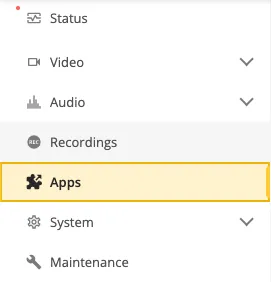
- Add app (+)
Select the app package file that you received from Irisity's Customer Support
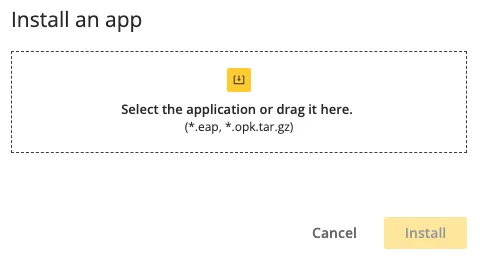
- Press "Install"
Toggle start and press "Open"

Enter username and password for an IRIS+ account administrator.
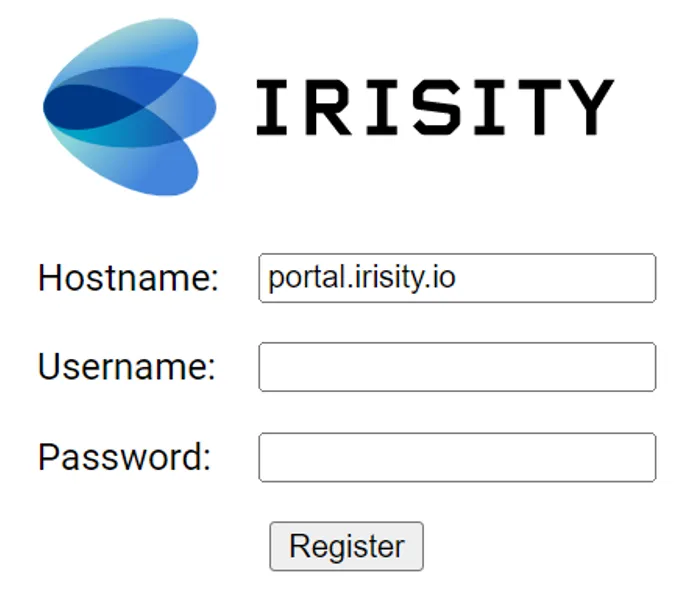
- Press Register
If multi-factor authentication is enabled for the IRIS+ account, enter the authentication code.
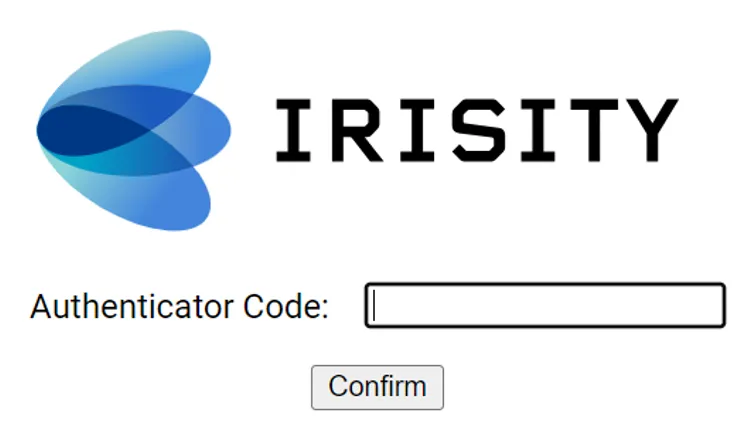
- Press "Confirm"
- Setup Edge device in IRIS+
Select IRIS+ account folder
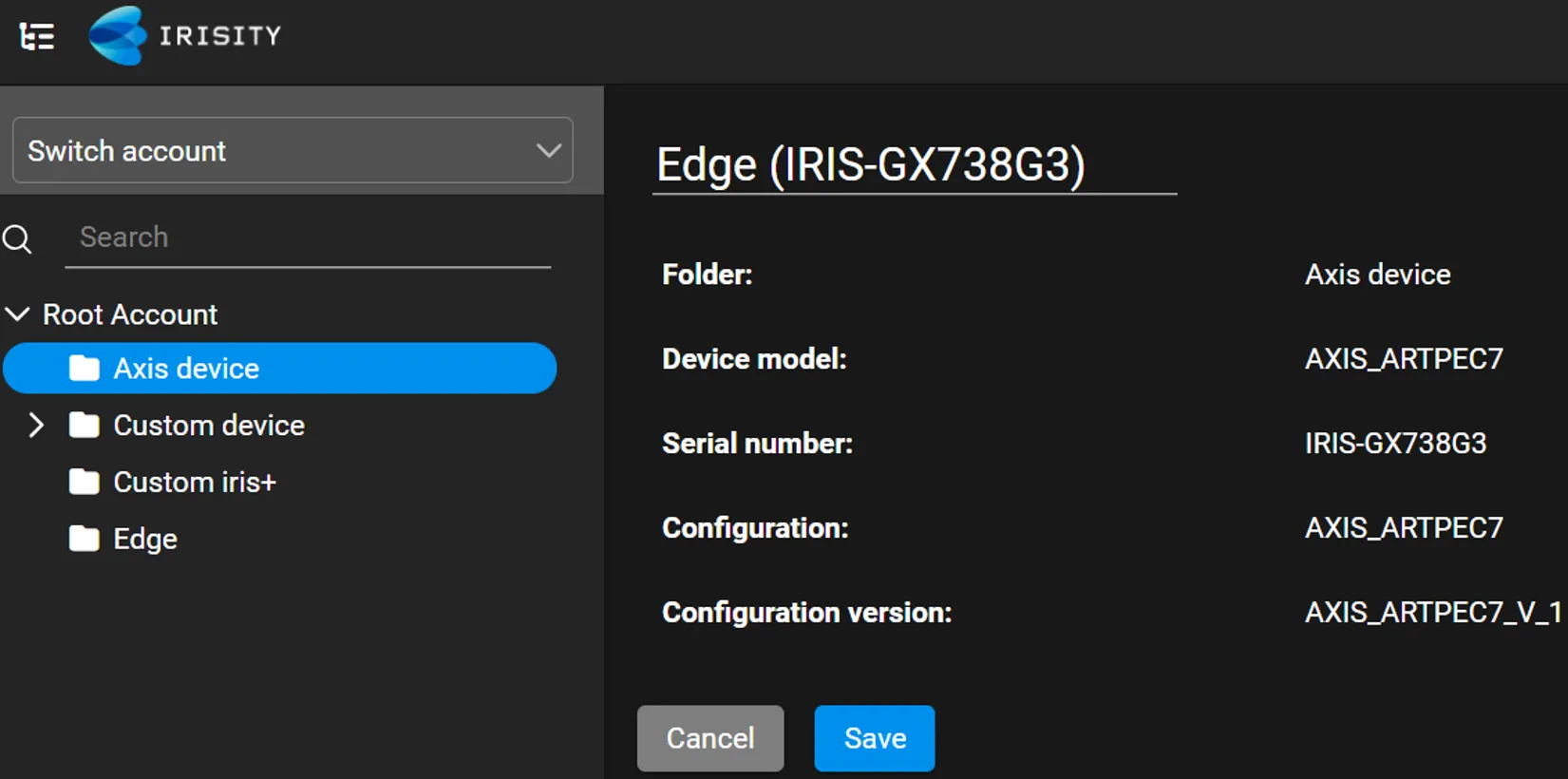
- Enter the desired device name
- Press "Save"
- Calibration While the Irisity Edge for Axis app is built to require only minimal configuration, the algorithm does still need an approximation of the 3D ground plane visible in the camera. This is done by doing a calibration for the camera in the IRIS+ portal. When defining an alarm zone by adding a rule in the IRIS+ portal, “inside” the zone is defined as the bottom center point of the object being inside the zone, the feet of a pedestrian for example. The number of seconds an alarm zone will be deactivated after an alarm has been triggered can be adjusted by the “Minimum time between events” camera setting in the IRIS+ portal. There is also an event cooldown which is the number of seconds an alarm will disable further detections from the same alarming object, including nearby objects that is fixed to 300 seconds.
Select a camera in the tree.
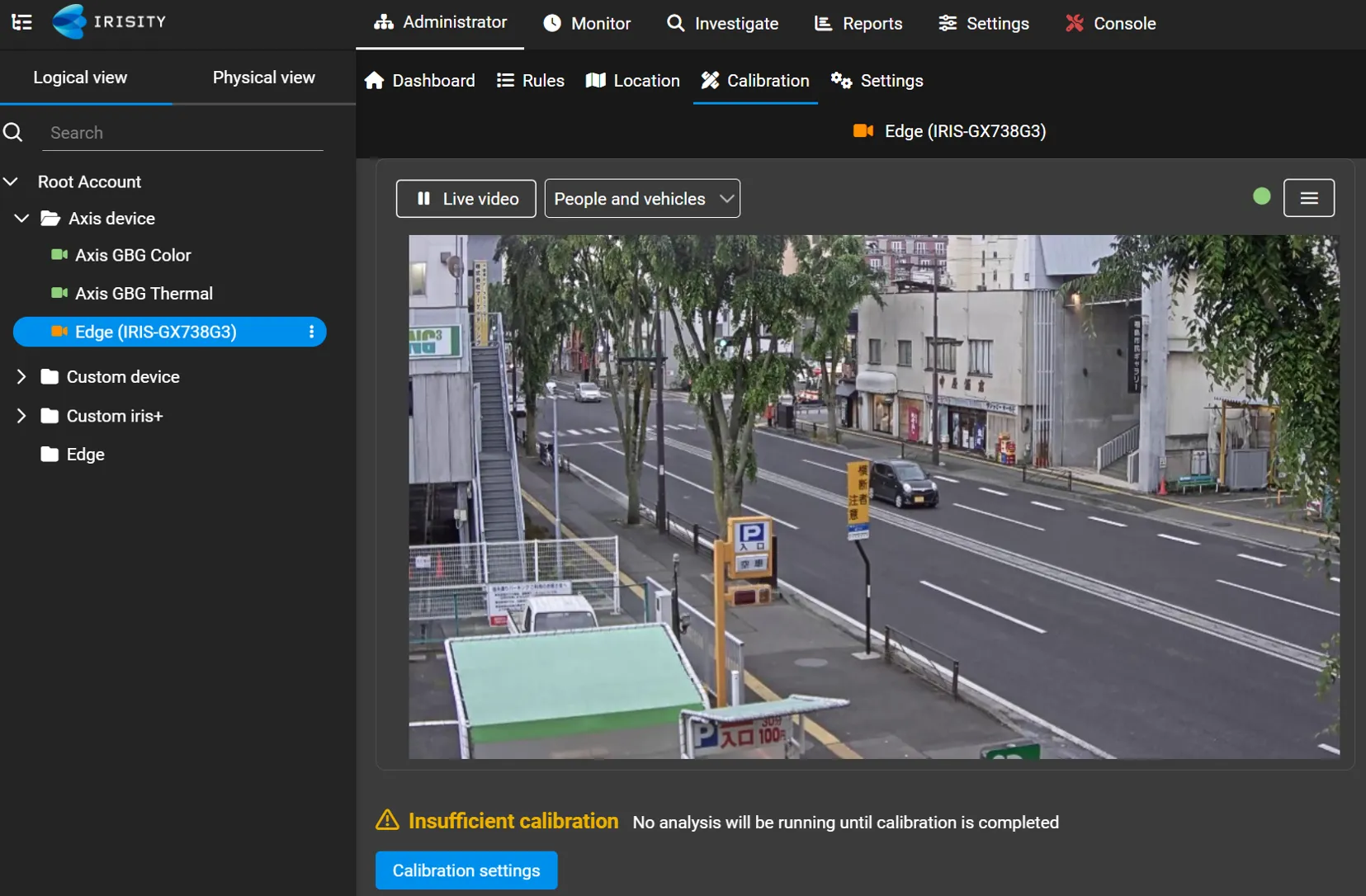
- Select "Calibration"
- Press "Calibration settings"
Add and adjust markers
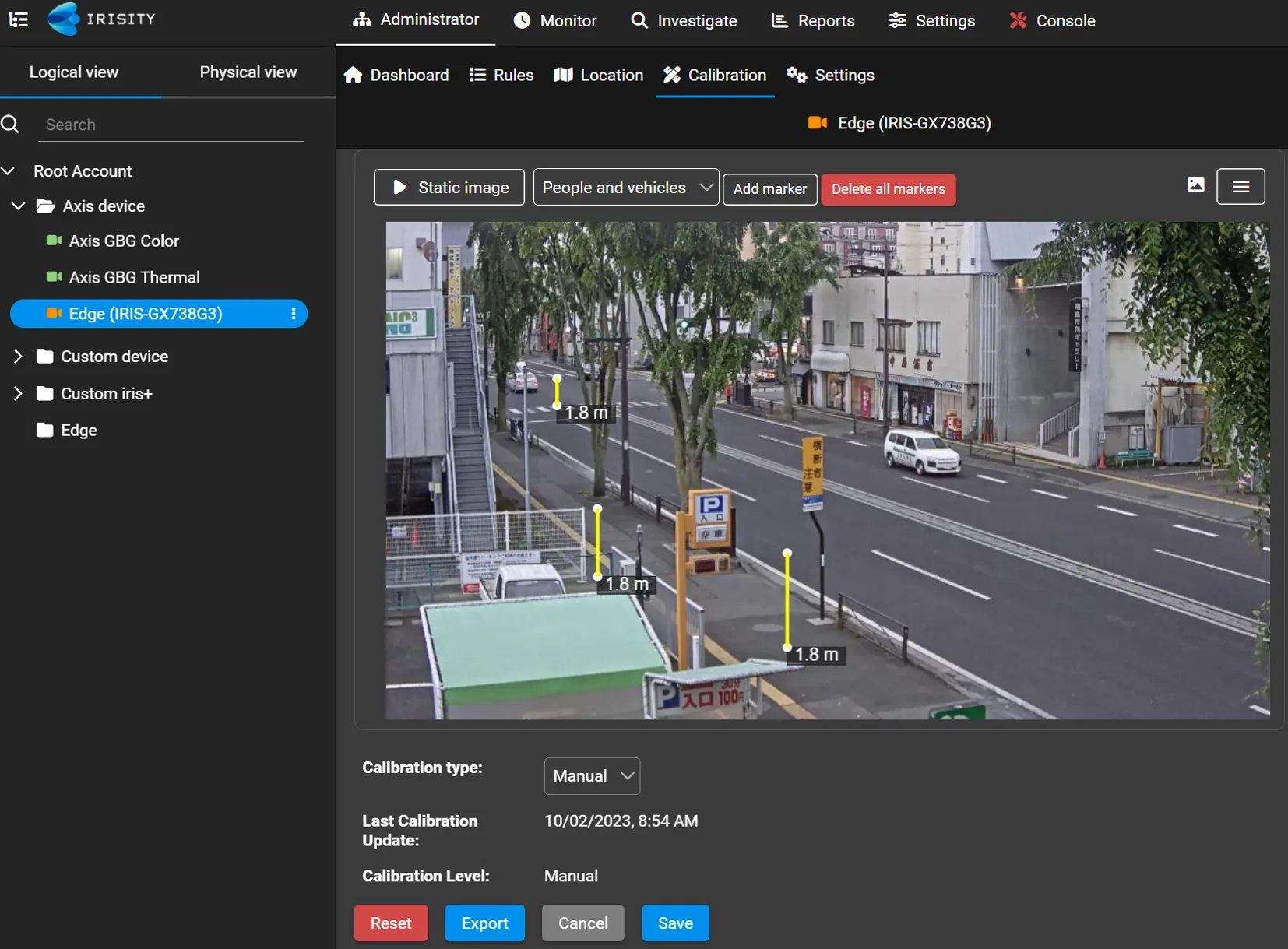
- Press "Save"
- Define rules
- Select "Logical view"
Select camera
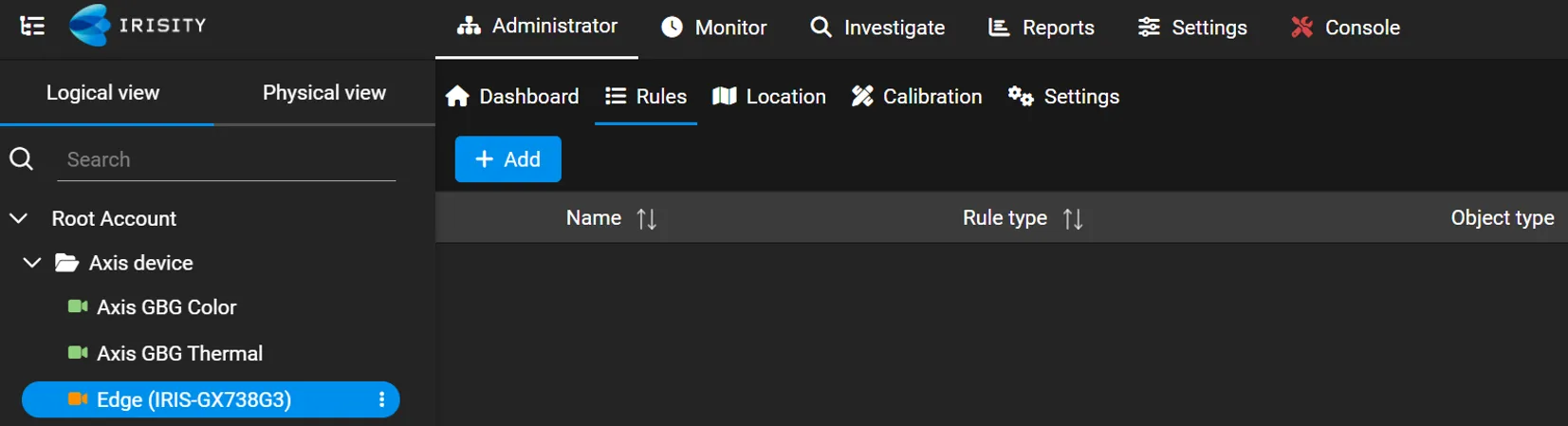
- Select "Rules"
- Press "+Add"
Enter rule name
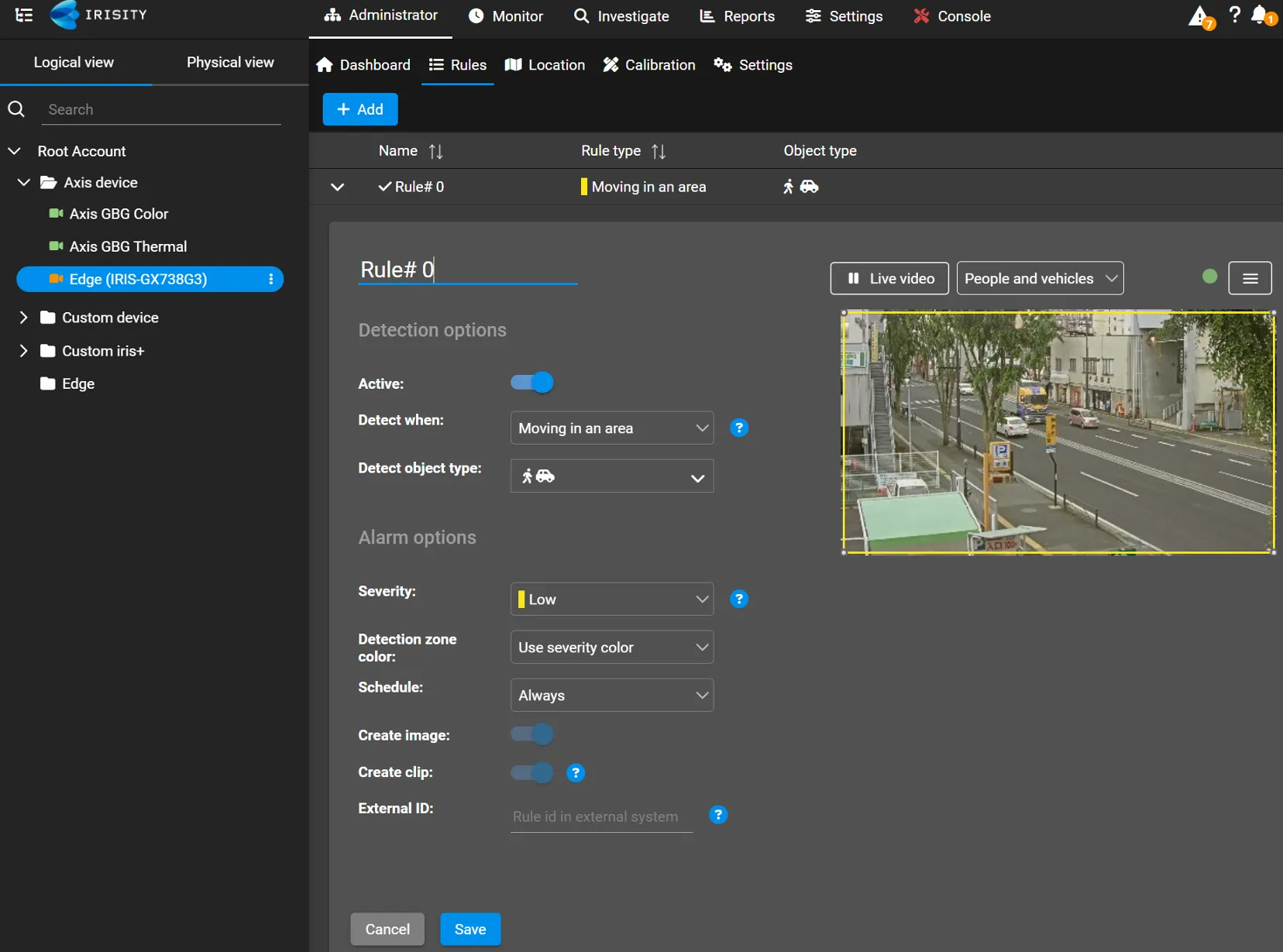
- Select object types to detect. People, Vehicles, or both
- Adjust alarm zone
- Press Save
- Events and alarmsAfter successfully installing the app and configuring the camera in the IRIS+ portal, objects classified as human activity breaching the alarm zone while not in a cooldown will produce alarm events.