Alarm Filtering
How it works
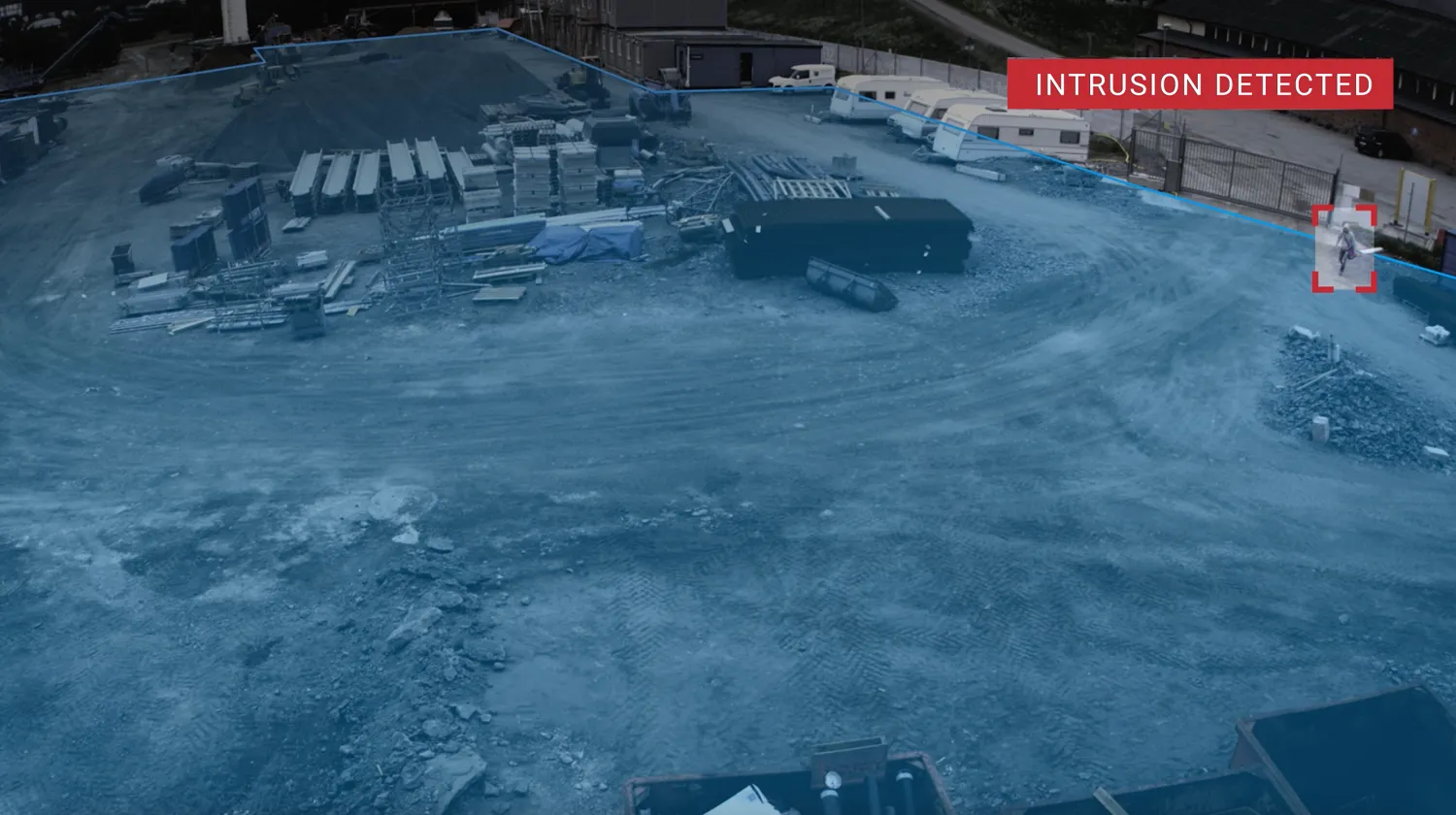
Alarm Filtering verifies rule events with a second detector on the core, so fewer false alarms reach operators.
Good to know
- It verifies three object types: people, vehicles and two-wheeled vehicles.
- Events the filter does not confirm are not shown in Monitor.
- If verification takes too long, the event is shown anyway, so real incidents still reach operators.
- Alarm Filtering needs a GPU on the core. Rules that trigger often, for example in busy scenes, add more GPU load.
- It works with color and IR cameras with a normal view.
How it verifies
When a supported rule raises an event, the edge holds it briefly and sends an image of the event object to the core. A detector there verifies that the object is in the image, and that it is the type the rule expects: a person, a vehicle or a two-wheeled vehicle.
flowchart LR
    subgraph EDGE["On the edge"]
        A["Rule raises<br/>an event"] --> B["Event is held<br/>briefly"]
    end
    subgraph CORE["On the core"]
        C["Detector verifies<br/>the object"]
    end
    B -->|"Image of the object"| C
    C -->|"Confirmed"| D["Shown in Monitor"]
    C -->|"Not confirmed"| F["Filtered out"]
    B -.->|"No answer in time"| D
Result | What happens |
|---|---|
Object confirmed | The event is shown in Monitor. |
Object not confirmed | The event is filtered out. |
No answer in time | The event is shown in Monitor. |
How to set up
Where to turn it on
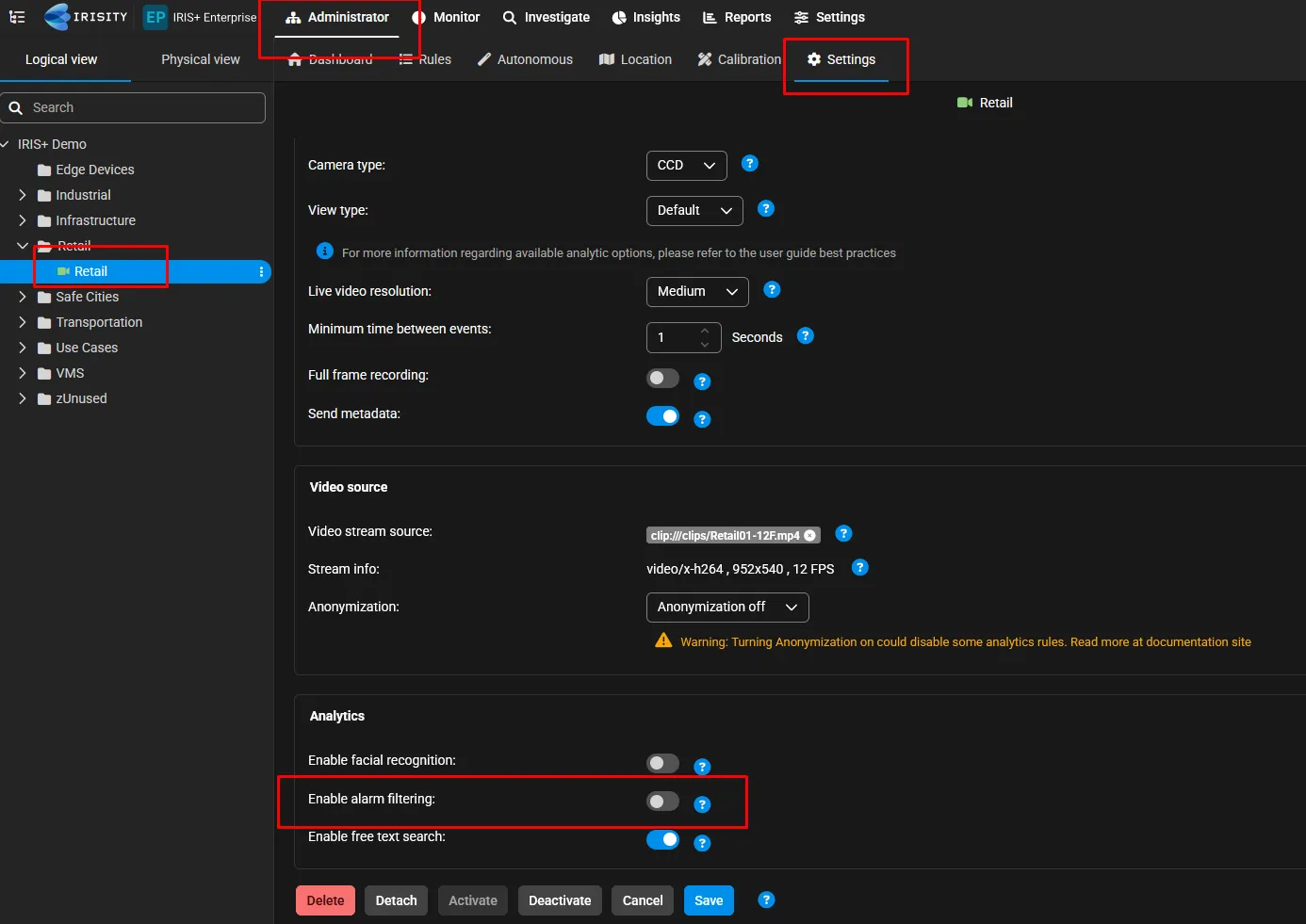
- In Administrator, select the camera and open Settings.
- Under Analytics, turn on Enable alarm filtering and click Save.
- Set up at least one supported rule on the camera.
Supported rules and cameras
Supported rules
Rule | Supported |
|---|---|
Moving in an Area | ✓ |
Line Crossing | ✓ |
Loitering | ✓ |
Stopped Vehicle | ✓ |
Grouping | ✓ |
Counterflow Traffic | ✓ |
Events from other rules are sent as usual, without alarm filtering.
Supported camera types
Camera type | Supported |
|---|---|
Color | ✓ |
IR | ✓ |
Thermal | – |
Supported view types
View type | Supported |
|---|---|
Normal | ✓ |
Fisheye, overhead | – |
What to expect
Use cases
Alarm Filtering helps most where the scene has regular nuisance sources, such as:
- Trees and foliage moving in the wind
- Flags, plastic and other loose items
- Shadows and reflections
- Small animals such as dogs and birds
It is tuned to cut false alarms. In rare cases it may also filter out a real event, for example when the object is hard to see in the image.
Bandwidth and load
- Filtered events are not uploaded, so Alarm Filtering often reduces upload traffic. A verification image is about 100 KB, while a full event can exceed 1 MB.
- Each verification uses a little GPU capacity on the core. Rules that trigger often, for example in busy or crowded scenes, send more verifications and add more load.
Tuning and troubleshooting
What you see | Likely cause | What to do |
|---|---|---|
A false alarm still reaches Monitor | The rule is not supported, the object is very small, or verification took too long. | Check that the rule is in the supported list. For small objects and timeouts, see Technical notes. |
A real event is missing in Monitor | The detector could not confirm the object. | Check that the object is clearly visible and large enough in the image. If it happens often, contact support with the event times. |
No events are filtered | Alarm filtering is off, or the camera has no supported rule. | Turn on Enable alarm filtering and check the rules on the camera. |
Constraints and tradeoffs
- Alarm Filtering confirms the object type and location. Rule logic such as dwell time, distance or group size is handled by the rule itself.
- A slow or unstable connection between edge and core may cause more events to be shown without verification. See Technical notes.
- Very small objects are shown without verification. See Technical notes.
Technical deep dive
How a verification works
- A supported rule raises an event on the edge.
- The edge holds the event and creates an image around the event object, with some of the surrounding scene for context.
- The image is sent to the detector on the core, which looks for people, vehicles and two-wheeled vehicles.
- The edge compares the result with the original event. The class must match, and the detection must overlap the event object.
- The edge shows the event in Monitor or filters it out. If no answer arrives in time, the event is shown anyway.
Technical notes
- For rules with several objects, such as Grouping, each object is verified. The event is confirmed as soon as one object is confirmed.
- Objects smaller than the minimum object size, typically 32 × 32 pixels, are not sent for verification and are shown as normal events.
- If the core does not answer in time, the event is shown in Monitor without verification. A slow or unstable connection between edge and core makes this more likely.
- With alarm filtering on, a few more candidate events reach verification, which can help catch borderline real events.
- Verification does not change the rule sensitivity.
- Stopped Vehicle runs in the cloud and reaches alarm filtering through its own path. Unattended Object uses its own built-in verification.
Definitions
- Verification: validation of a rule event by the detector on the core.
- Event object: the person, vehicle or two-wheeled vehicle that triggered the rule.
- Confirmed: the detector found the expected object at the event location. The event is shown in Monitor.
- Filtered out: the detector did not find the expected object. The event is not shown in Monitor.
- Released: no answer arrived in time. The event is shown in Monitor without verification.